
01 · Unified KeyTips
Excel and Sheets, in one Alt flow.
Press Alt / Option once to see Excel-compatible entry points and Sheets-specific actions together. No mode switching required.
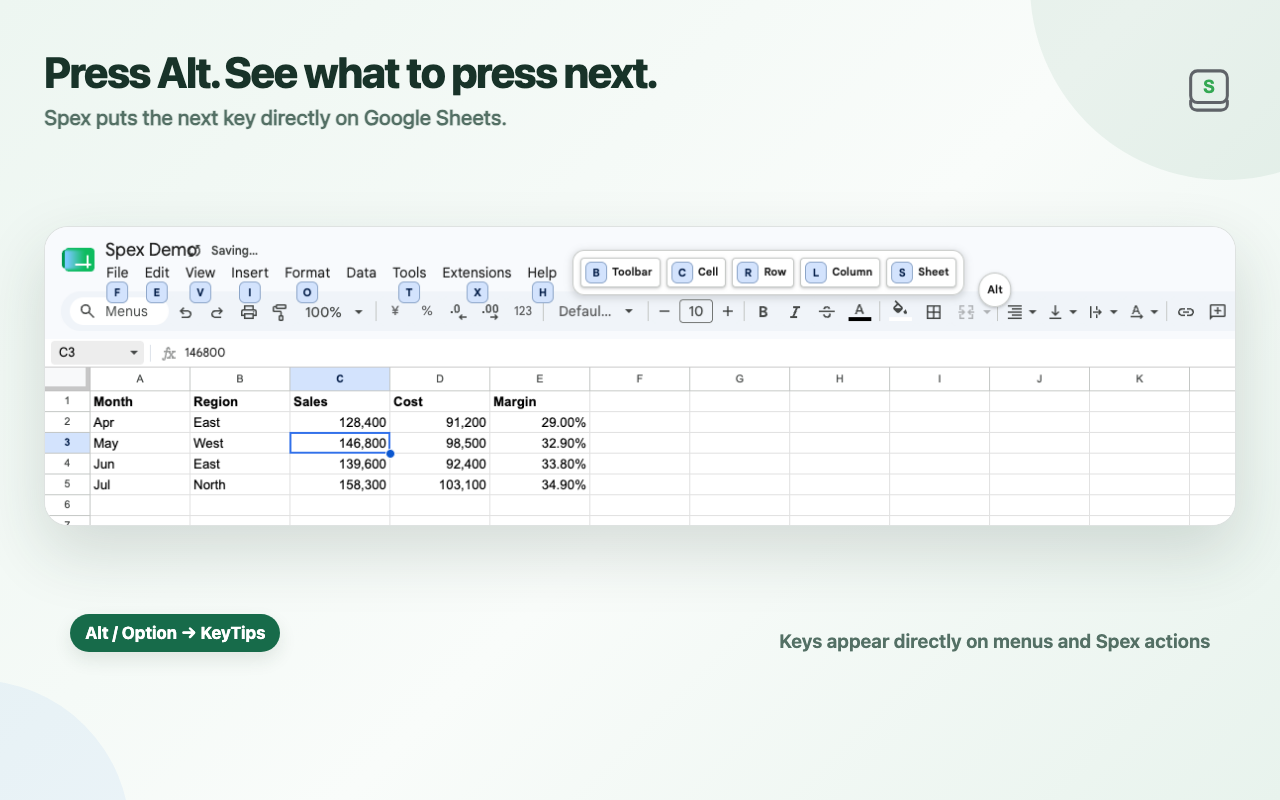
Excel shortcuts for Google Sheets™ with on-screen KeyTips
0.2.0 · New features preparing →Spex is a browser extension that brings Excel-style sequential shortcuts to Google Sheets.Alt / Optionreveals the keys available right on the page. Follow the KeyTips to control menus, formatting, rows, columns, sheets, and more without reaching for the mouse.
0.2.0 · Preparing
0.2.0 adds many more Excel-compatible Alt shortcuts for everyday spreadsheet work. There is no longer a separate Excel/Sheets mode: both live in one KeyTip flow.
See everything changing in 0.2.0 →Press Alt / Option once to see Excel-compatible entry points and Sheets-specific actions together. No mode switching required.
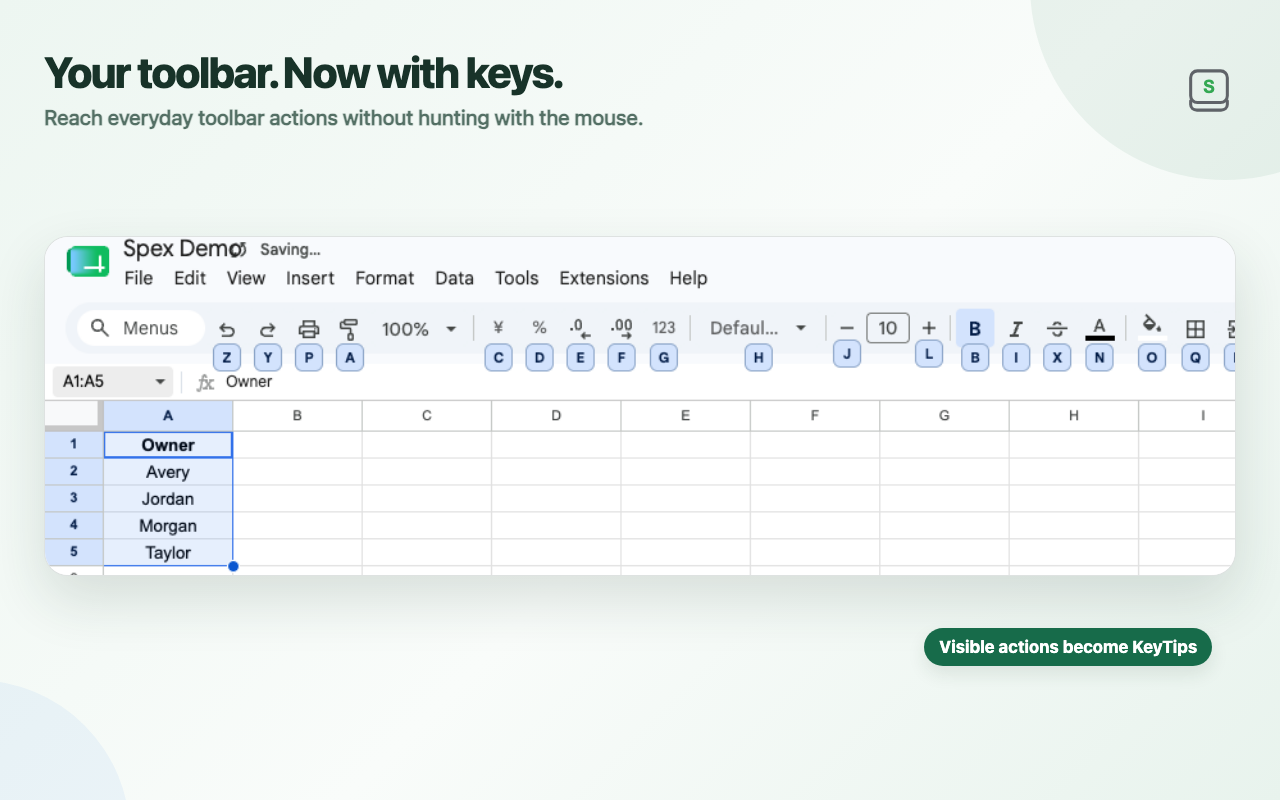
Alt → S → B expands KeyTips over the Google Sheets toolbar actions currently on screen.
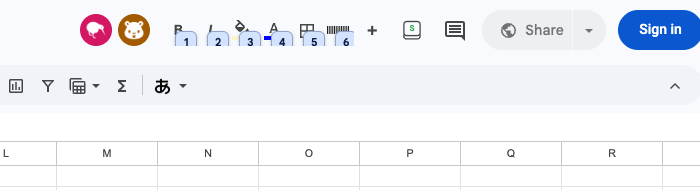
Pin commands, fixed colors, and border actions above Google Sheets for one-click use. Press Alt / Option and the first nine items get 1–9 KeyTips for direct keyboard access.
Keyboard-first controls
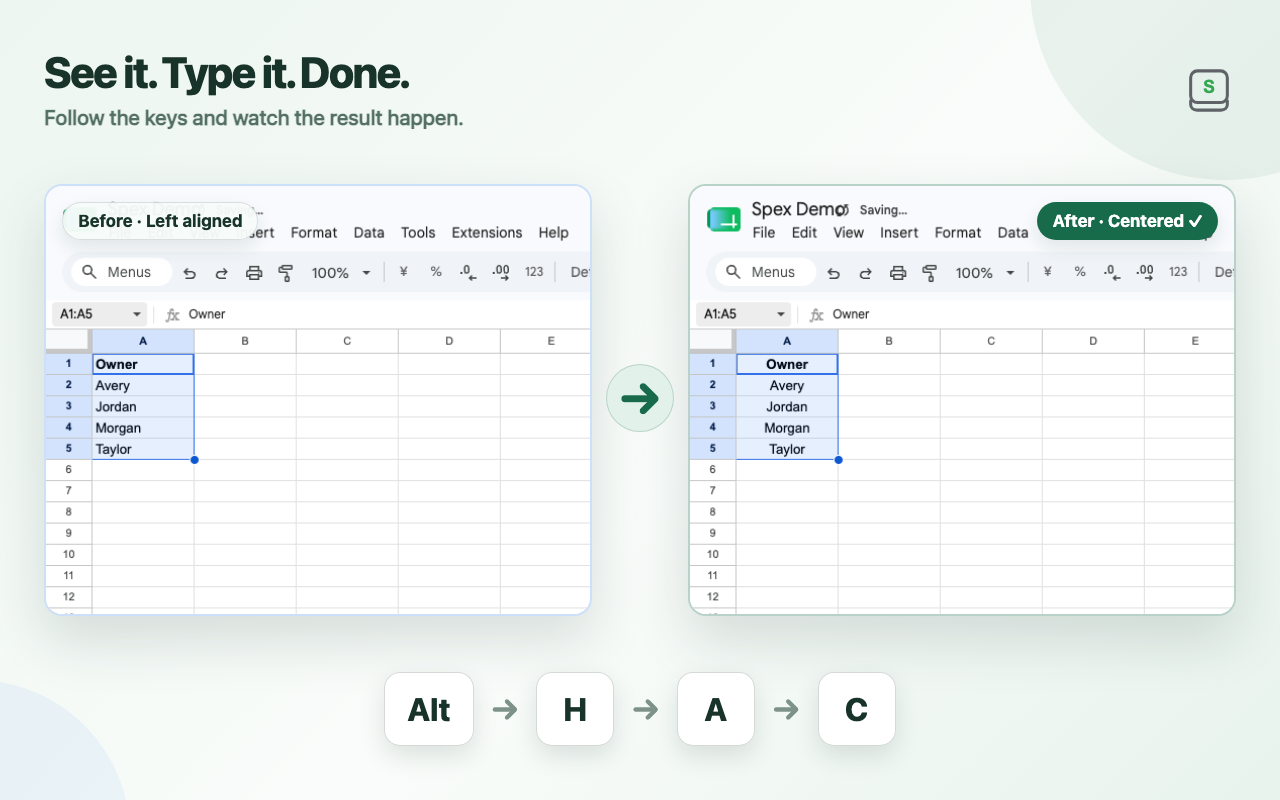
Press Alt / Optionin Google Sheets to show the keys available at that moment. Follow the KeyTips to run commands without moving your hand to the mouse.
Recorded in Google Sheets, showing KeyTips and a command being executed.
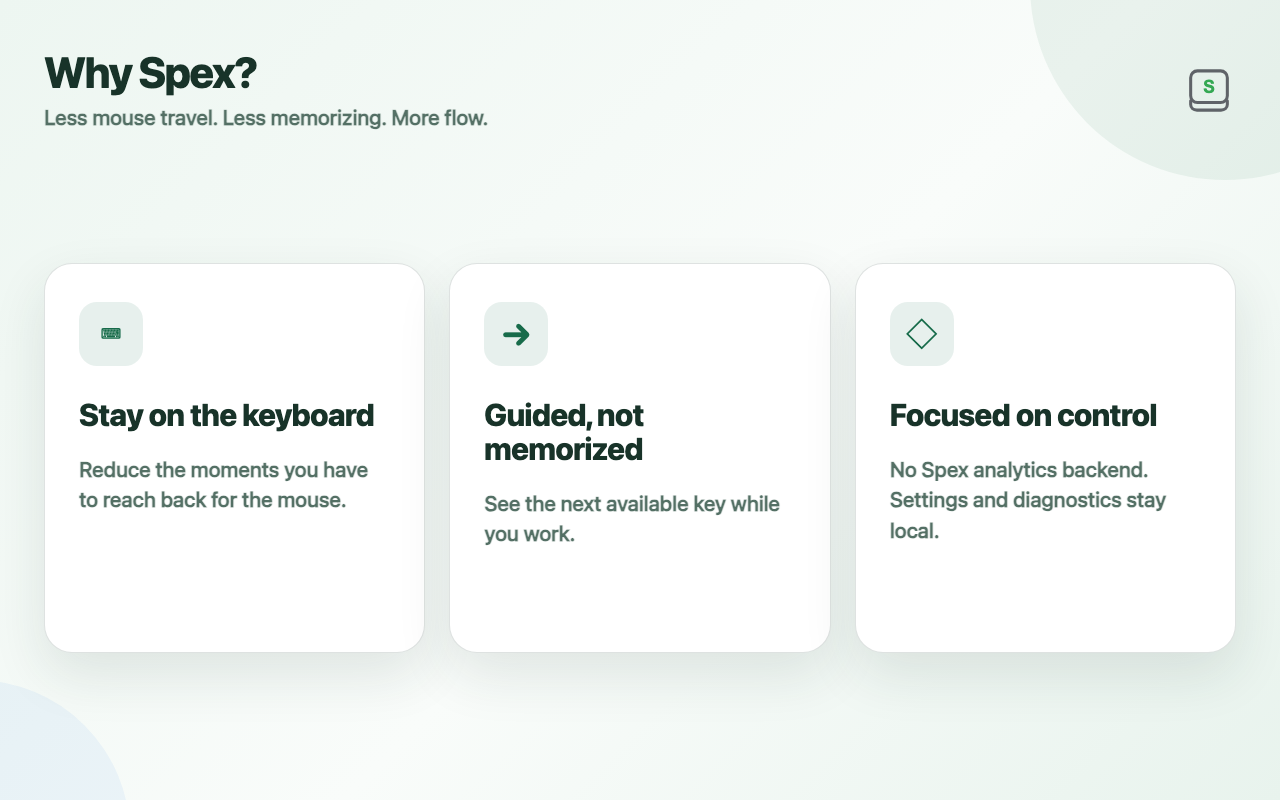
Why Spex
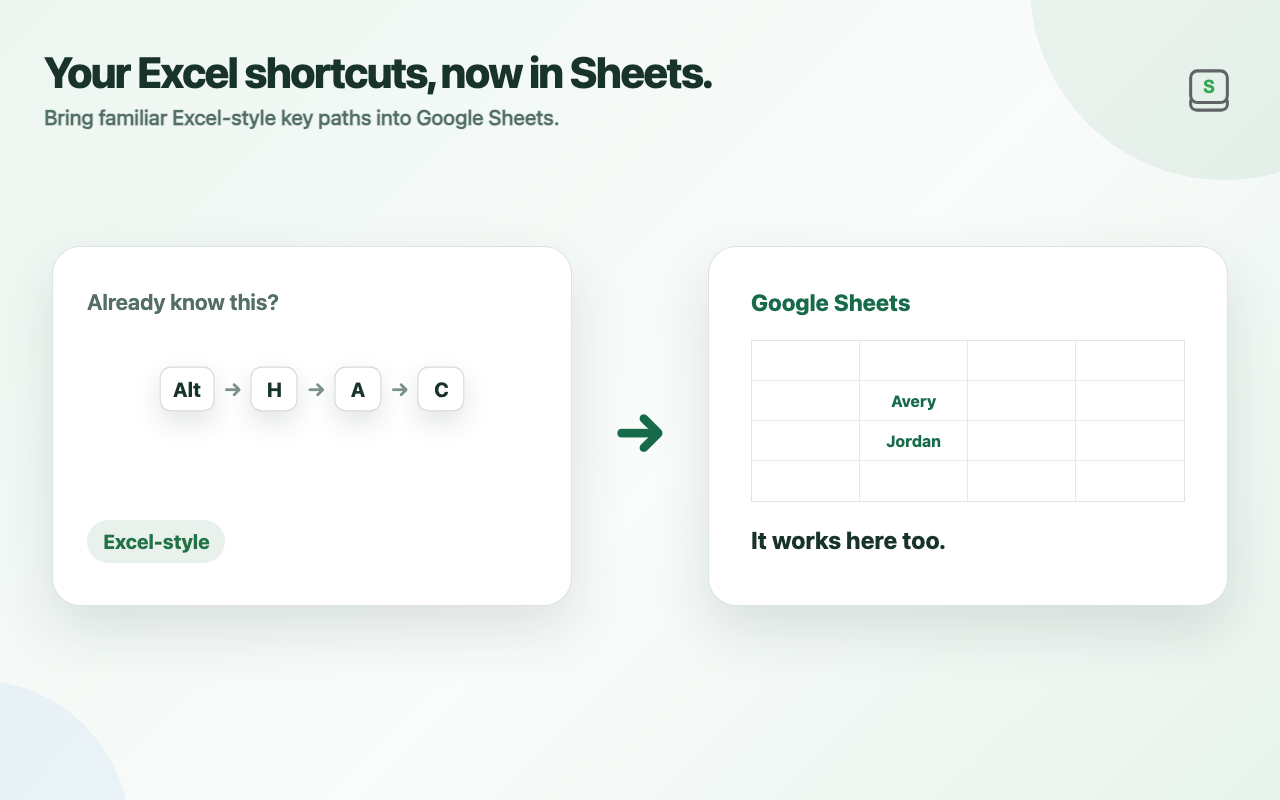
Supported Excel KeyTips keep their familiar paths, while Google Sheets-specific actions join the same Alt / Option KeyTip flow.
AutoFit, Paste Special, conditional formatting, freeze, data tools, grouping, charts, and more connect to their Google Sheets equivalents.
Press Alt / Option and Spex shows the next available keys as KeyTips, so you can follow the screen instead of memorizing everything.
Spex adds KeyTips to Google Sheets menus and toolbar actions so commands you used to hunt for with the mouse are reachable from the keyboard.
Register frequent commands, fixed colors, and border actions, then run them directly with Excel-style Alt+1–9 access.
Dark mode covers both the Google Sheets UI and the cell grid, while preserving original colors as much as possible and prioritizing readability.
How it works
Privacy
Settings, onboarding state, and limited Spex operational/error diagnostics are stored in browser extension local storage. Spex does not automatically upload diagnostics or usage telemetry.
Spex does not use telemetry or analytics. Diagnostics do not store spreadsheet URLs, cell values, formulas, or selection contents.
Read the full Privacy PolicyFAQ
Common questions about how Spex works, what it supports, and how it handles data.
No. Press Alt / Option and Spex displays the next available keys as KeyTips on the page.
For supported actions, Spex prioritizes Excel KeyTips. Google Sheets-specific actions are integrated into unused paths in the same Alt / Option graph, so there is no profile to switch.
Yes. It applies to both the Google Sheets UI and the cell grid, while preserving original colors as much as possible and prioritizing readability.
No. Spex does not use telemetry or analytics. Diagnostics normally stay on the device and are sent for support only when you explicitly choose to attach them and submit the extension support form.
Still need help?
Questions and bug reports are welcome by email. If possible, include reproduction steps, your Chrome / Google Sheets language, and the Spex version.